Mira · Guide
How to make a vision board on your iPhone
There are five ways to make a vision board on an iPhone. Four use apps you already have or can get for free; the fifth is Mira, which is what this site is for, so read the comparison with that in mind.
The first two are about making the board: laying out pictures and words the way you would on paper. The other three are about seeing it, because a board you have to go and open is one you stop opening.
Way 1: a collage in Freeform
Freeform is Apple’s free whiteboard app, and it is the closest thing on the iPhone to a cork board: an open canvas where you can drop photos, write next to them and move everything around. If you want to make a board the way you would by hand, start here.
- Open Freeform (it is free on the App Store if it isn’t on your phone) and tap the New Board button.
- Tap the photo button in the toolbar and add pictures from your library. Drag to move them and pinch to resize.
- Tap the text button to write a line next to each picture, or use a sticky note for a heading per area.
- Tap the board’s name at the top and call it something you will find again, such as “Vision board 2027”.
The catch: the board lives inside Freeform, so you only see it when you open the app. A screenshot of it can become your wallpaper, which is the next way.
Way 2: a collage as your wallpaper
Make the collage as a single image and set it as your wallpaper, and the board is on screen every time you pick up the phone. Canva has phone-sized vision board templates to make this quick; a Freeform screenshot works too.
- In Canva, search the templates for “phone wallpaper vision board” and pick one with photo spaces.
- Drop your own photos into the spaces and change the words to yours.
- Tap Share → Download, choose PNG, and save it to Photos.
- Open Settings → Wallpaper → Add New Wallpaper → Photos, choose the image, then tap Add and set it as a wallpaper pair.
Keep it to four or five pictures. On a phone screen, a collage of twelve becomes twelve thumbnails, and the clock covers the top of it.
Way 3: a Photos widget on your Home Screen
iOS can show one photo album as a widget, and moves through the album by itself. It is free, and it is a good start if your board is only pictures.
- Open Photos and make an album called “Vision board”. Add the photos you want to see.
- Press and hold an empty area of the Home Screen until the apps jiggle, then tap Edit → Add Widget in the top left.
- Search for “Photos”, swipe to the Album widget and add it.
- Press and hold the new widget, tap Edit Widget, and choose your “Vision board” album.
What it can’t do: there is no text, so the words that go with each picture stay in your head or in a note somewhere else.
Way 4: a Lock Screen wallpaper that shuffles
Your Lock Screen wallpaper can cycle through a set of photos. It fills the whole screen, which makes it the most striking of the three, but you only see it while the phone is locked.
- Wake the phone without unlocking it, then press and hold the Lock Screen.
- Tap the + button to add a new wallpaper, then choose Photo Shuffle.
- Choose the photos for your board. The ••• button sets how often they change: on tap, on lock, hourly or daily.
- Tap Add, and set it as a wallpaper pair if you want the Home Screen to match.
What it can’t do: the pictures sit behind the clock and your notifications, and there is still nowhere to put the words.
Way 5: Mira, photos with words on a widget
Mira is a vision board app built around the widget. Every photo has a short phrase with it, and the widget moves through your board on a schedule you pick, on the Home Screen, the Lock Screen, or both.
- Install Mira and pick the areas of life you want on your board. It starts you off with photos and phrases for them, so there is something to see straight away.
- Swap in your own photos and write your own words, up to 42 characters each, or take a suggested phrase.
- Press and hold an empty area of the Home Screen until the apps jiggle, tap Edit → Add Widget and search for “Mira”.
- Pick a size and drop it wherever you like. It rotates on its own.
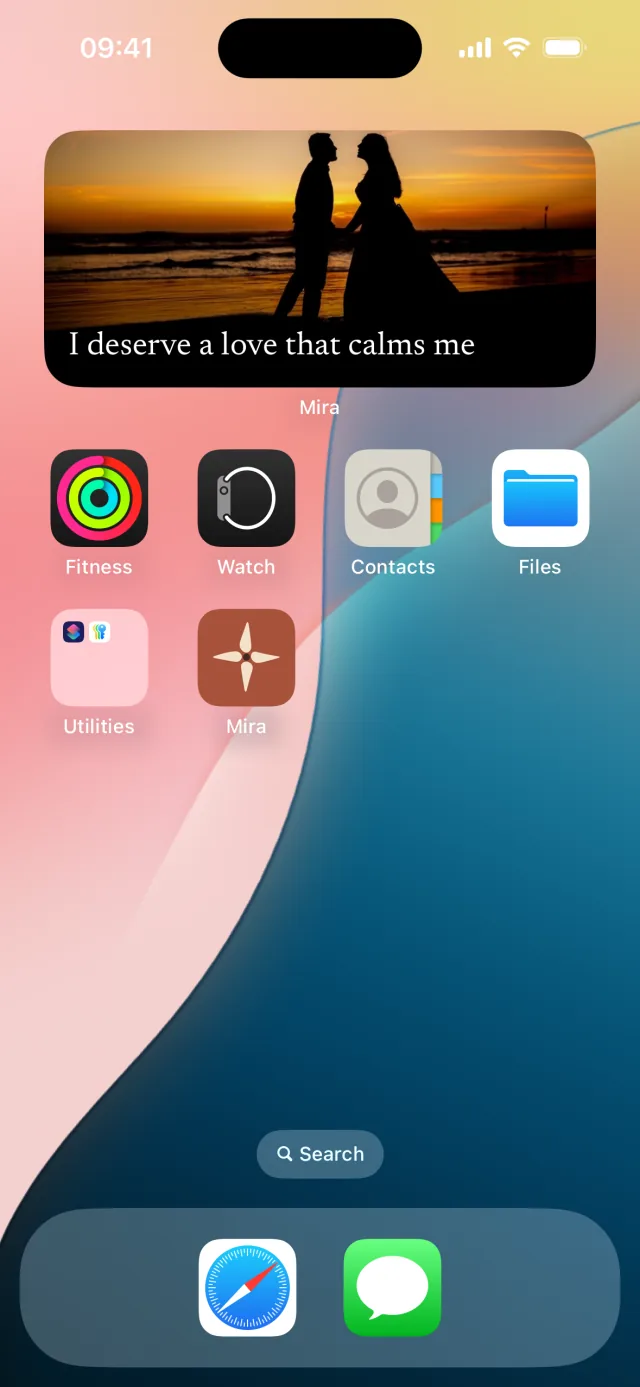
The trade-off: Mira is free for a small board, and a bigger one needs Premium.
Which one to use
If you want to make the board by hand, Freeform or Canva gets you there, and a collage wallpaper keeps it in front of you. If your board is only pictures and the Home Screen is enough, the Photos widget is free and does the job. If you want the board to change on its own, Photo Shuffle is hard to beat for pictures. If the words matter as much as the pictures, which is the idea behind a vision board, that is what Mira is for.
Start with three photos
A board you make in ten minutes and actually see does more than a perfect one you never open. Pick three photos, give each a line, and put them where you will look.

on your iPhone